
Router and Wi-Fi problems, light by light
Your router already knows what is wrong and is telling you with a coloured light. Learning to read it saves the twenty minutes most people spend restarting things at random.
Your router already knows what is wrong and is telling you with a coloured light. Learning to read it saves the twenty minutes most people spend restarting things at random.
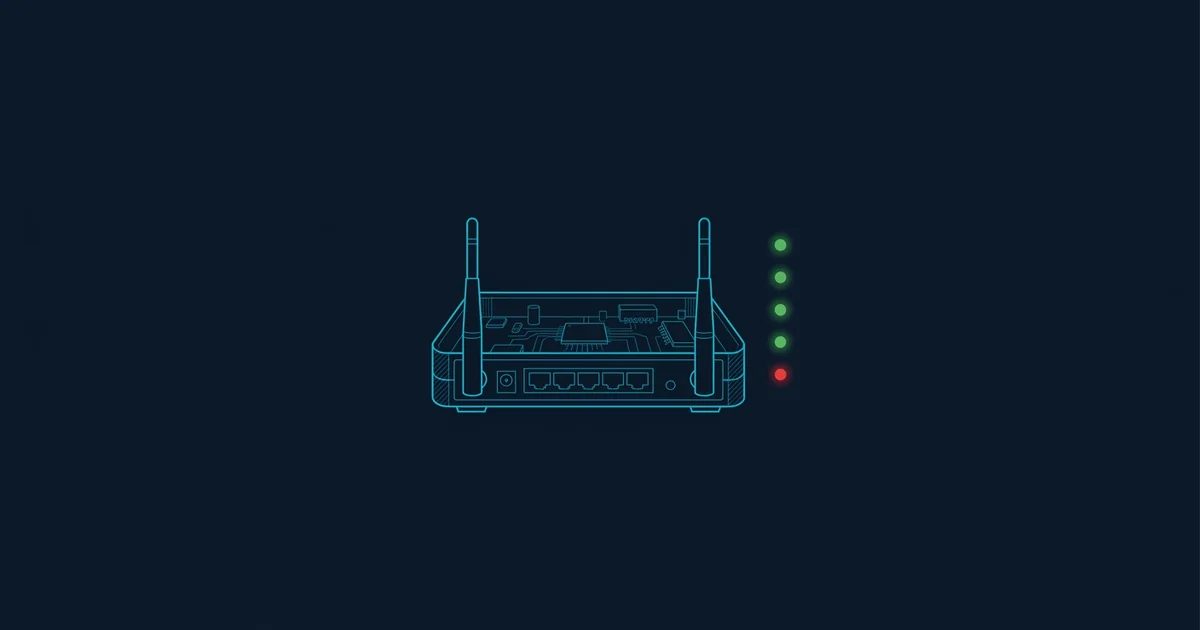
Before touching anything, look at the box. Router status lights are a genuine diagnostic display that most people have never learned to read, and they separate the two things that get confused constantly: The Wi-Fi inside your home, and the internet connection coming into it.
Names vary by manufacturer, but the categories are consistent.
| Light | Meaning | If it is wrong |
|---|---|---|
| Power | The unit has power | Check the adapter and socket |
| DSL / Cable / Fibre | The line has sync with the exchange | A line fault - Your ISP's problem |
| Internet / WAN / Globe | An IP session is established | Authentication or ISP-side fault |
| Wi-Fi / WLAN | The radio is on | Wi-Fi off; wired will still work |
| LAN / Ethernet | A cable is connected | Cable or port problem |
The critical distinction is between the line light and the internet light. Line light off means the physical connection to your provider is not there - That is theirs to fix and nothing you do will help. Line light on but internet light off means the physical line is fine and the session is not being established, which is often authentication and sometimes an ISP-side fault.
Broadly consistent across manufacturers: Green or white is working, blinking is trying to establish, orange or amber is connected but degraded, red is failed, off is disabled or dead.
On a cable modem, a blinking or orange downstream light means it cannot lock onto a channel - A signal problem on the coaxial line, which affects the whole node and is worth reporting. On fibre, a red LOS light means loss of signal on the optical line, which is either a cut or a problem at the exchange.
These get conflated constantly and have completely different fixes.
Wi-Fi problem: Connected to the network, no internet; some devices work and others do not; it is fine near the router and terrible upstairs; speed drops when the microwave runs.
Internet problem: Every device fails equally, wired included; the line or internet light is wrong; your neighbours on the same provider are also affected.
The decisive test is a cable. Plug a laptop directly into the router with Ethernet. If that works, the line is fine and your problem is entirely the radio. If it does not, the radio is irrelevant.
The 2.4 GHz band has three non-overlapping channels and is shared with microwaves, Bluetooth, baby monitors and every neighbour. In a flat block it is frequently unusable in the evening.
Use 5 GHz where you can - Shorter range, far less congestion, much higher throughput. Most routers broadcast both bands under one name and let devices choose, which usually works and occasionally leaves a device clinging to a weak 2.4 GHz signal when a strong 5 GHz one is available. Separating the bands into two named networks gives you control over that.
Wi-Fi is absorbed by water and blocked by metal. A router in a cupboard, behind a television, on the floor or next to a boiler is being deliberately handicapped. Central, elevated and in the open is worth more than almost any equipment upgrade.
Each connected device consumes airtime whether it is doing anything or not. Thirty smart devices, cameras and phones on one access point will degrade it noticeably, and consumer routers handle this less gracefully than their specifications suggest.
It genuinely fixes some problems - A stuck DHCP lease, a full NAT table, a firmware bug, a cached DNS answer. Done wrong it fixes none of them.
Do not press the reset pinhole. That is a factory reset, not a restart. It erases your Wi-Fi name, password and every setting, and on some ISP-supplied units it also erases the provisioning, which means a support call. Restarting means unplugging the power.
Intermittent faults are almost always physical or capacity-related rather than configuration.
Same time every evening points at congestion on a shared medium - Your neighbours, not you. Random drops that correlate with weather suggest water in a cable joint, which is common on older copper. Drops when a particular device joins suggest an IP conflict or a device with a broken network stack. Progressive degradation over weeks suggests failing hardware, and routers do die slowly.
Call when the line light is off or red, when the fault persists after a proper restart and a wired test, when it is clearly intermittent over days, or when other people in your area are reporting the same thing.
Before calling, gather: Which lights are wrong, whether a wired connection works, how long it has been happening, and what you have already tried. It shortens the call considerably and skips the script.
Green or white is working, blinking means it is trying to connect, orange means degraded, and red means failed. The important distinction is between the line light (DSL, cable or fibre) and the internet light: A line problem is your provider's to fix, while an internet light problem with a good line is often authentication.
Thirty seconds. That lets capacitors discharge and lets your provider's session time out cleanly at their end. A two-second power cycle frequently just reconnects the same broken session, which is why quick restarts so often fail to help.
Plug a computer into the router with an Ethernet cable. If that works, the internet connection is fine and the problem is the Wi-Fi radio - Placement, channel congestion or too many devices. If it does not work, the radio is irrelevant.
No. The pinhole is a factory reset, not a restart: It erases your network name, password and all settings, and on some provider-supplied units it also erases the provisioning. To restart, unplug the power for thirty seconds.
A layered diagnostic for working out whether the fault is your device, your network, your ISP, DNS, or the website itself.
How to confirm an ISP outage, why cable outages affect one street and not the next, and what to do while you wait.
How DNS resolution fails, how to confirm it is the cause, and how to fix it - Including which resolver to switch to and why.
Exact commands for flushing the DNS cache on every major platform, plus the browser and router caches people forget about.